Choosing the right Integrated Development Environment (IDE) for Java programming can dramatically accelerate your development workflow, reduce bugs, and make coding more enjoyable. Whether you’re a beginner writing your first “Hello World” application or a seasoned architect building enterprise microservices, your IDE is your most important tool.
Here’s the reality:
The Java ecosystem offers dozens of IDEs, each with distinct strengths, weaknesses, and ideal use cases. Some are heavyweight powerhouses packed with enterprise features. Others are lightweight and blazingly fast. Some cost thousands of dollars. Others are completely free.
This comprehensive guide cuts through the noise to help you identify the best IDE for your specific Java development needs. We’ll examine the leading options, compare their capabilities, and provide actionable recommendations based on your experience level, project requirements, and development style.
By the end of this guide, you’ll understand exactly which Java IDE aligns with your goals and how to maximize its potential.
What is a Java IDE and Why Does It Matter?
An Integrated Development Environment (IDE) is a software application that consolidates the essential tools developers need to write, test, debug, and deploy code within a single interface.
A modern Java IDE typically includes:
- Code editor with syntax highlighting and auto-completion
- Compiler to transform Java source code into bytecode
- Debugger for identifying and fixing errors
- Build automation tools (Maven, Gradle integration)
- Version control integration (Git, SVN)
- Testing frameworks (JUnit, TestNG support)
- Refactoring tools for restructuring code without changing behavior
- Database connectivity and management tools
Why your IDE choice matters more than you think:
The right IDE doesn’t just help you write code faster. It actively prevents errors through intelligent code analysis, suggests improvements through refactoring recommendations, and reduces cognitive load by managing complex project structures automatically.
Studies show that developers spend only 20-30% of their time actually writing new code. The rest involves reading existing code, debugging, testing, and navigating project structures. A well-chosen IDE optimizes all these activities, making you significantly more productive.
The wrong IDE, however, can:
- Slow down your workflow with excessive resource consumption
- Overwhelm beginners with unnecessary complexity
- Lack critical features for your specific framework or architecture
- Create compatibility issues with team workflows
- Require expensive licensing that doesn’t justify the value
Let’s explore the landscape of Java IDEs to help you make an informed decision.
The Top Java IDEs: Comprehensive Comparison
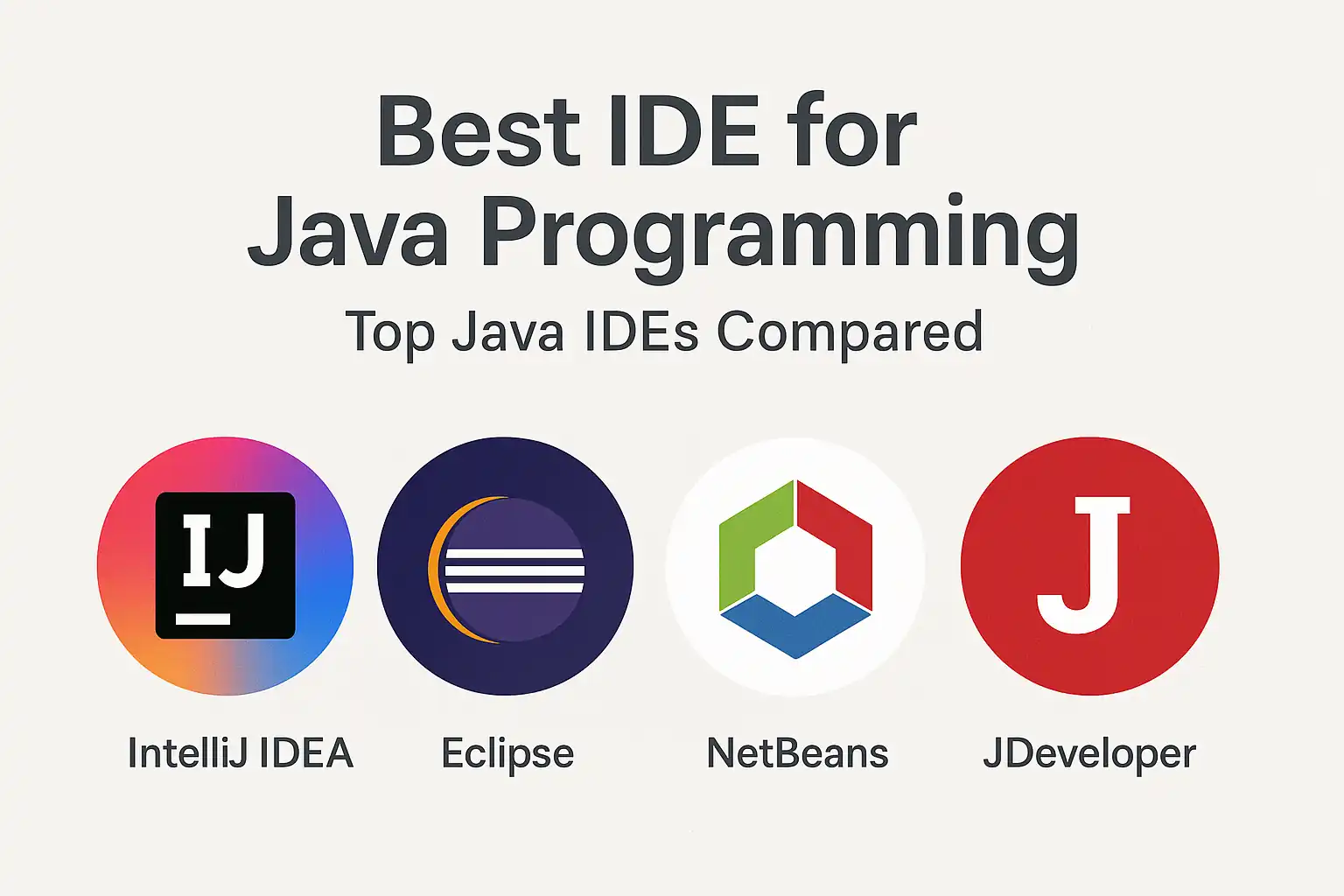
IntelliJ IDEA: The Industry Standard for Professional Java Development
IntelliJ IDEA, developed by JetBrains, has become the de facto standard for professional Java development. It’s consistently rated as the best IDE for Java application development by developers worldwide.
Why IntelliJ IDEA dominates:
Intelligent code completion that goes beyond simple syntax suggestions. IntelliJ analyzes your entire project context, understands frameworks, and predicts what you’re trying to accomplish with remarkable accuracy.
Deep framework integration for Spring, Jakarta EE, Micronaut, Quarkus, and virtually every major Java framework. The IDE understands framework-specific patterns and provides specialized assistance.
Powerful refactoring capabilities that safely restructure code across your entire project. IntelliJ can rename variables, extract methods, change signatures, and perform complex transformations while maintaining code integrity.
Built-in version control with sophisticated Git integration, including visual merge tools, branch management, and GitHub/GitLab connectivity.
Database tools that allow you to query, edit, and manage databases directly from the IDE without switching to external tools.
Two editions available:
The Community Edition is free and open-source, providing robust support for core Java, Kotlin, Groovy, Scala, and Android development. It includes Maven and Gradle support, version control integration, and essential debugging tools.
The Ultimate Edition requires a paid subscription but adds enterprise features including Spring Framework support, Jakarta EE, JavaScript frameworks, database tools, HTTP client, and profiling capabilities.
Best for:
Professional developers working on enterprise applications, Spring-based projects, or complex multi-module systems. The Ultimate Edition justifies its cost for teams building production applications with modern frameworks.
Considerations:
IntelliJ IDEA is resource-intensive. You’ll want at least 8GB of RAM (16GB recommended) for comfortable performance on large projects. The learning curve is moderate—beginners may initially feel overwhelmed by the feature density.
Eclipse: The Free, Extensible Powerhouse
Eclipse has been a cornerstone of Java development for over two decades. It’s completely free, open-source, and backed by the Eclipse Foundation, making it a popular choice for individual developers, educational institutions, and cost-conscious organizations.
Eclipse’s enduring strengths:
Zero cost with no feature limitations. Everything is available for free, including enterprise Java development capabilities.
Massive plugin ecosystem with thousands of extensions covering virtually every programming language, framework, and tool imaginable. If you need specialized functionality, there’s likely an Eclipse plugin for it.
Excellent Jakarta EE support (formerly Java EE). Eclipse has deep roots in enterprise Java and provides comprehensive tooling for server-side development.
Strong community with decades of accumulated knowledge, tutorials, and troubleshooting resources.
Workspace flexibility that allows you to organize multiple projects and switch between different development contexts efficiently.
The plugin architecture means you can start with a minimal installation and add only the features you need, keeping the IDE lean and focused.
Best for:
Developers seeking a completely free solution with enterprise capabilities, teams working on Jakarta EE applications, and organizations with budget constraints. Eclipse is also excellent for educational environments where licensing costs matter.
Considerations:
Eclipse’s user interface feels dated compared to modern alternatives. The default configuration requires significant customization to match the out-of-box experience of IntelliJ IDEA. Performance can degrade with large projects or excessive plugins. The learning curve is steeper than some alternatives, particularly for beginners.
Visual Studio Code: The Lightweight Modern Alternative
Visual Studio Code (VS Code) isn’t technically a full-fledged IDE—it’s a highly extensible code editor. However, with the right extensions, it becomes a capable Java development environment that’s gaining rapid adoption.
Why developers are choosing VS Code for Java:
Exceptional performance with minimal resource consumption. VS Code launches instantly and remains responsive even on modest hardware.
Modern, intuitive interface that feels familiar to developers from various backgrounds. The UI is clean, customizable, and follows contemporary design principles.
Free and open-source with no licensing restrictions and active development by Microsoft.
Extension marketplace offering the Java Extension Pack, which bundles essential Java development tools including language support, debugging, testing, Maven/Gradle integration, and project management.
Excellent Git integration built directly into the core editor with visual diff tools and streamlined workflows.
Cross-platform consistency with identical functionality across Windows, macOS, and Linux.
Versatility beyond Java makes VS Code ideal for full-stack developers working with multiple languages. You can seamlessly switch between Java, JavaScript, Python, and dozens of other languages in a single editor.
Best for:
Developers who value speed and simplicity, full-stack engineers working across multiple languages, and those with limited system resources. VS Code is particularly appealing for microservices development where you might work with Java, configuration files, Docker, and frontend code simultaneously.
Considerations:
VS Code requires manual configuration through extensions to match the integrated experience of purpose-built Java IDEs. Advanced features like deep framework integration and sophisticated refactoring are less comprehensive than IntelliJ IDEA. Beginners may struggle with the initial setup process.
NetBeans: The Underrated Official Java IDE
NetBeans, now an Apache project, was originally developed by Sun Microsystems (the creators of Java itself). It’s completely free, officially supported, and often overlooked despite its solid capabilities.
NetBeans’ distinctive advantages:
Official Java support means NetBeans typically receives early access to new Java features and provides reliable compatibility with the latest JDK releases.
Excellent out-of-box experience with minimal configuration required. NetBeans works well immediately after installation without extensive setup.
Strong GUI builder for Swing and JavaFX applications. If you’re building desktop applications with graphical interfaces, NetBeans provides visual design tools that competitors lack.
Integrated profiler for identifying performance bottlenecks and memory issues without additional tools.
Modular architecture that allows you to enable only the features you need, keeping the IDE responsive.
Maven and Gradle integration with excellent support for dependency management and build automation.
Best for:
Developers building desktop applications with Swing or JavaFX, those who prefer working with the latest Java features immediately, and teams seeking a free IDE with strong fundamentals and minimal configuration overhead.
Considerations:
NetBeans has a smaller community compared to Eclipse and IntelliJ IDEA, resulting in fewer third-party plugins and less abundant troubleshooting resources. The user interface, while functional, lacks the polish of modern alternatives. Market adoption has declined in recent years, raising questions about long-term ecosystem vitality.
BlueJ: The Best IDE for Java Beginners
BlueJ was specifically designed for teaching object-oriented programming to beginners. It’s not suitable for professional development, but it’s unmatched for learning Java fundamentals.
Why BlueJ excels for education:
Visual class representation shows your classes as interactive boxes, making object-oriented relationships immediately visible and understandable.
Interactive object creation allows students to instantiate objects and call methods directly without writing a main method, enabling experimentation and immediate feedback.
Simplified interface removes advanced features that distract beginners, focusing exclusively on core programming concepts.
Built-in code pad for testing expressions and method calls interactively, similar to a REPL environment.
Excellent for teaching with features designed specifically for classroom use, including project sharing and simplified project management.
Best for:
Complete programming beginners, students in introductory computer science courses, and educators teaching object-oriented concepts. BlueJ helps learners understand classes, objects, methods, and inheritance before dealing with professional development complexity.
Considerations:
BlueJ is deliberately limited and unsuitable for real-world application development. Students must eventually transition to professional IDEs, which can be jarring. The simplified environment doesn’t prepare learners for professional development workflows.
How to Choose the Best IDE for Your Java Development Needs
Selecting the optimal IDE depends on multiple factors beyond feature lists and benchmarks. Here’s a systematic approach to making the right choice.
Assess Your Experience Level
Complete beginners should prioritize simplicity and learning-focused features over professional capabilities.
If you’re just starting with Java, BlueJ provides the gentlest introduction to object-oriented programming. Its visual approach helps you understand classes and objects before dealing with professional development complexity.
After mastering fundamentals, transition to IntelliJ IDEA Community Edition or NetBeans. Both offer excellent beginner experiences with helpful code completion and error detection that teaches good practices while you code.
Intermediate developers with solid Java fundamentals should focus on IDEs that accelerate productivity without overwhelming complexity.
IntelliJ IDEA Community Edition represents the sweet spot—powerful enough for serious projects but not overwhelming. VS Code with Java extensions offers a modern alternative if you value speed and simplicity.
Advanced and professional developers need enterprise features, framework integration, and sophisticated refactoring capabilities.
IntelliJ IDEA Ultimate Edition justifies its cost through deep framework support, database tools, and productivity features that save hours weekly. Eclipse remains viable for teams with Jakarta EE requirements and budget constraints.
Consider Your Project Type
Enterprise applications with Spring, Jakarta EE, or microservices architectures demand IDEs with deep framework understanding.
IntelliJ IDEA Ultimate Edition provides unmatched Spring Framework integration, understanding dependency injection, configuration, and Spring-specific patterns. Eclipse offers strong Jakarta EE support with excellent server integration.
Android development has specific requirements that narrow your choices significantly.
Android Studio (built on IntelliJ IDEA) is the official IDE and provides the best Android development experience. IntelliJ IDEA Ultimate Edition also supports Android development with similar capabilities.
Desktop applications using Swing or JavaFX benefit from visual design tools.
NetBeans includes the best GUI builder for visual interface design. Eclipse also offers WindowBuilder for visual development, though it requires plugin installation.
Microservices and cloud-native applications often involve multiple languages and technologies beyond Java.
VS Code excels in polyglot environments where you’re working with Java services, Docker configurations, Kubernetes manifests, and frontend code. Its lightweight nature and excellent extension ecosystem make it ideal for modern cloud development.
Learning and experimentation require different priorities than production development.
BlueJ for absolute beginners, then IntelliJ IDEA Community Edition or NetBeans for continued learning with professional tools.
Evaluate Your System Resources
IDE performance directly impacts your productivity and frustration levels.
If you have limited RAM (4-8GB):
VS Code offers the lightest footprint with excellent Java support through extensions. NetBeans also runs reasonably well on modest hardware. Avoid IntelliJ IDEA on systems with less than 8GB RAM—the experience will be frustrating.
If you have adequate resources (16GB+ RAM):
IntelliJ IDEA Ultimate Edition provides the best overall experience without performance concerns. Eclipse also runs comfortably with sufficient resources.
If you work on older hardware or need maximum responsiveness:
VS Code launches instantly and remains responsive even during intensive operations. It’s the clear choice for developers prioritizing speed and low resource consumption.
Factor in Budget Constraints
Free and open-source options provide professional capabilities without licensing costs.
IntelliJ IDEA Community Edition, Eclipse, NetBeans, and VS Code all offer robust Java development capabilities at zero cost. For many developers and organizations, these free options provide everything needed for professional development.
Paid options justify their cost through advanced features and productivity gains.
IntelliJ IDEA Ultimate Edition costs approximately $149/year for individuals (with discounts for students, educators, and open-source contributors). For professional developers working with Spring, databases, and modern frameworks, the productivity gains typically justify this investment within weeks.
Educational and open-source discounts significantly reduce costs for eligible users.
JetBrains offers free Ultimate Edition licenses for students, educators, and open-source project contributors. If you qualify, take advantage of these programs to access enterprise features at no cost.
Consider Team and Organizational Factors
Team standardization simplifies collaboration and knowledge sharing.
If your team already uses a specific IDE, adopting the same tool reduces friction, enables pair programming, and allows teammates to help with configuration and troubleshooting.
Project compatibility matters for shared configurations and build processes.
Most modern IDEs handle Maven and Gradle projects identically, ensuring compatibility. However, IDE-specific configuration files (IntelliJ’s .idea folder, Eclipse’s .project files) can cause version control noise if team members use different IDEs.
Corporate policies and licensing may constrain your options.
Some organizations standardize on specific tools for security, support, or licensing reasons. Understand your organization’s policies before investing time in learning a particular IDE.
Essential Features Every Java IDE Should Provide
Regardless of which IDE you choose, certain capabilities are non-negotiable for productive Java development.
Intelligent Code Completion
Modern code completion goes far beyond simple syntax suggestions. The best IDEs analyze your entire project, understand framework patterns, and predict your intentions with remarkable accuracy.
What to look for:
Context-aware suggestions that understand variable types, method signatures, and available APIs. Completion should work across your entire project, including dependencies and frameworks.
Framework-specific intelligence that understands Spring annotations, Jakarta EE patterns, and other framework conventions. The IDE should suggest appropriate annotations, configuration options, and implementation patterns.
Import optimization that automatically adds necessary import statements and removes unused ones. You should never manually manage imports.
Powerful Debugging Capabilities
Debugging is where you’ll spend significant time, so robust debugging tools are essential.
Critical debugging features:
Breakpoint management including conditional breakpoints, exception breakpoints, and method breakpoints. You should be able to pause execution based on complex conditions.
Variable inspection that shows current values, allows expression evaluation, and lets you modify values during debugging sessions.
Step execution controls (step over, step into, step out) that let you navigate code execution precisely.
Hot swap capabilities that allow you to modify code during debugging sessions without restarting the application (Java’s HotSwap has limitations, but IDEs maximize its utility).
Refactoring Tools
Refactoring restructures code without changing its behavior, improving maintainability and design.
Essential refactoring operations:
Rename variables, methods, and classes safely across your entire project, updating all references automatically.
Extract methods to reduce code duplication and improve readability by converting code blocks into separate methods.
Change method signatures by adding, removing, or reordering parameters while automatically updating all call sites.
Move classes between packages while maintaining import statements and references.
Inline variables and methods to simplify code when appropriate.
Build Tool Integration
Modern Java development relies on build tools for dependency management and project automation.
Required build tool support:
Maven integration that understands pom.xml files, manages dependencies, and executes build lifecycle phases directly from the IDE.
Gradle integration with similar capabilities for Gradle-based projects, including dependency resolution and task execution.
Dependency management that visualizes project dependencies, identifies conflicts, and allows easy addition of new libraries.
Version Control Integration
Git has become the standard for version control, making IDE integration essential.
Key version control features:
Visual diff tools that highlight changes between versions with side-by-side or inline comparison views.
Commit and push operations directly from the IDE without switching to command-line tools.
Branch management including creation, switching, merging, and conflict resolution.
Blame annotations showing who modified each line of code and when.
Best IDE for Beginners: Getting Started with Java Development
If you’re new to Java programming, choosing the right IDE significantly impacts your learning experience and early success.
Why IntelliJ IDEA Community Edition is the Best IDE for Java Beginners
For most beginners moving beyond introductory courses, IntelliJ IDEA Community Edition offers the optimal balance of power and approachability.
Learning-friendly features:
Helpful error messages that explain problems in plain language and often suggest fixes. IntelliJ actively teaches good practices through its suggestions.
Intelligent code completion that helps you discover APIs and methods without memorizing everything. As a beginner, you’ll learn faster by seeing contextual suggestions.
Quick fixes for common mistakes that let you correct errors with a single keystroke. IntelliJ identifies problems and offers solutions, teaching you correct patterns.
Integrated tutorials and tips that guide you through features progressively rather than overwhelming you immediately.
Clean, modern interface that’s intuitive to navigate without extensive configuration.
Setting Up Your First Java IDE
Here’s how to get started:
Step 1: Install the Java Development Kit (JDK)
Before installing any IDE, you need the JDK. Download the latest LTS (Long Term Support) version from Oracle, Amazon Corretto, or Adoptium. Java 21 or Java 25 are excellent choices as of 2026.
Step 2: Download and install your chosen IDE
Visit the official website (jetbrains.com for IntelliJ IDEA, eclipse.org for Eclipse, netbeans.apache.org for NetBeans, or code.visualstudio.com for VS Code).
Download the appropriate version for your operating system and follow the installation wizard.
Step 3: Configure the JDK in your IDE
Most modern IDEs detect installed JDKs automatically. If not, you’ll need to manually specify the JDK location in the IDE’s settings.
Step 4: Create your first project
Use the IDE’s new project wizard to create a simple Java application. Start with a basic “Hello World” program to verify everything works correctly.
Step 5: Explore essential features gradually
Don’t try to learn everything immediately. Focus on basic editing, running programs, and simple debugging. Gradually explore code completion, refactoring, and advanced features as you become comfortable.
Lightweight IDE for Java: When Speed and Simplicity Matter
Not every project requires a heavyweight IDE with enterprise features. Sometimes you need something fast, simple, and resource-efficient.
Visual Studio Code: The Modern Lightweight Champion
VS Code has emerged as the premier lightweight option for Java development, offering remarkable capabilities with minimal resource consumption.
Setting up VS Code for Java development:
Install the Java Extension Pack from the VS Code marketplace. This bundle includes essential extensions for Java language support, debugging, testing, Maven/Gradle integration, and project management.
Configure the JDK by setting the java.home configuration option to point to your JDK installation.
Install additional extensions based on your needs, such as Spring Boot Extensions, Lombok support, or database tools.
The result:
A blazingly fast development environment that launches instantly, consumes minimal RAM, and provides solid Java development capabilities. You sacrifice some advanced features compared to full IDEs, but gain speed and simplicity.
Best use cases for lightweight IDEs:
Quick edits and small projects where launching a full IDE feels excessive.
Microservices development where you’re frequently switching between multiple small codebases.
Full-stack development involving multiple languages where a polyglot editor makes more sense than language-specific IDEs.
Development on older hardware or systems with limited resources.
Remote development over SSH where bandwidth and latency make lightweight tools preferable.
Advanced IDE Features for Professional Java Development
Professional developers working on complex applications benefit from advanced IDE capabilities that go beyond basic editing and debugging.
Framework-Specific Intelligence
Modern Java development heavily relies on frameworks like Spring, Jakarta EE, Micronaut, and Quarkus. The best IDEs understand these frameworks deeply.
Spring Framework integration in IntelliJ IDEA Ultimate Edition provides:
Dependency injection awareness that understands beans, autowiring, and component scanning. The IDE knows which beans are available and suggests appropriate injections.
Configuration file support for application.properties and application.yml with auto-completion for Spring Boot properties.
Request mapping navigation that lets you jump directly from HTTP requests to controller methods.
Bean dependency visualization showing how Spring components relate to each other.
Database Tools and SQL Support
Many Java applications interact with databases, making integrated database tools valuable.
Integrated database capabilities:
Direct database connections from the IDE to development, testing, and production databases.
SQL editor with syntax highlighting, code completion, and query execution.
Schema visualization showing tables, relationships, and constraints graphically.
Data editing capabilities that let you modify database records directly without writing SQL.
Query result export in various formats including CSV, JSON, and SQL.
Profiling and Performance Analysis
Identifying performance bottlenecks requires specialized tools that measure execution time and resource consumption.
Profiling features:
CPU profiling that identifies methods consuming excessive processing time.
Memory profiling that tracks object allocation and identifies memory leaks.
Thread analysis for understanding concurrency issues and deadlocks.
Flame graphs and call trees that visualize execution patterns.
Remote Development and Debugging
Modern development often involves containers, cloud environments, and remote servers.
Remote development capabilities:
SSH integration for editing files on remote servers directly from your local IDE.
Docker and Kubernetes integration for containerized application development.
Remote debugging that attaches to Java applications running in different environments.
Cloud platform integration for deploying and managing applications on AWS, Azure, or Google Cloud.
Common IDE Mistakes and How to Avoid Them
Even experienced developers make suboptimal IDE choices and configuration decisions.
Mistake 1: Using the Wrong IDE for Your Experience Level
Beginners often choose Eclipse because it’s free and widely known, then struggle with its dated interface and configuration complexity. Meanwhile, experienced developers sometimes stick with basic editors when a full IDE would dramatically improve their productivity.
The fix:
Match your IDE to your current skill level and project requirements. Beginners should prioritize ease of use over feature completeness. Professionals should invest in tools that maximize productivity, even if they require learning time or licensing costs.
Mistake 2: Ignoring IDE Keyboard Shortcuts
Developers who rely primarily on mouse navigation waste countless hours over their careers. The most productive developers rarely touch the mouse while coding.
The fix:
Learn essential keyboard shortcuts for your IDE. Start with basics like navigation (jump to definition, find usages), editing (duplicate line, move line up/down), and refactoring (rename, extract method). Most IDEs provide searchable shortcut references and even gamified learning tools.
Mistake 3: Not Customizing Your IDE
Default configurations rarely match individual preferences and workflows. Developers who never explore settings miss opportunities for significant productivity improvements.
The fix:
Invest time in customizing your IDE. Adjust code style settings to match your preferences or team standards. Configure code templates for frequently-used patterns. Set up live templates for boilerplate code. Customize the interface layout to match your workflow.
Mistake 4: Installing Too Many Plugins
The plugin ecosystem is tempting, but excessive plugins degrade performance and create instability.
The fix:
Install plugins selectively and remove ones you don’t actively use. Evaluate whether a plugin provides sufficient value to justify its performance impact. Periodically audit your installed plugins and remove unnecessary ones.
Mistake 5: Not Leveraging Code Generation
Modern IDEs can generate massive amounts of boilerplate code automatically, yet many developers still write it manually.
The fix:
Learn your IDE’s code generation capabilities. Generate getters and setters, constructors, equals and hashCode methods, toString implementations, and test methods automatically. Use live templates for common patterns. Let the IDE handle tedious boilerplate while you focus on business logic.
The Future of Java IDEs: Emerging Trends
The IDE landscape continues evolving with new technologies and development paradigms.
AI-Assisted Coding
Artificial intelligence is transforming how we write code. Tools like GitHub Copilot, Amazon CodeWhisperer, and JetBrains AI Assistant provide intelligent code suggestions based on context and natural language descriptions.
What this means for Java developers:
AI assistants can generate entire methods from comments, suggest test cases, explain complex code, and identify potential bugs. While not replacing developer expertise, these tools accelerate routine coding tasks and help developers explore unfamiliar APIs.
Major IDEs are rapidly integrating AI capabilities, making them standard features rather than experimental add-ons.
Cloud-Based Development Environments
Cloud IDEs like GitHub Codespaces, Gitpod, and AWS Cloud9 move development environments to the cloud, providing consistent setups accessible from any device.
Benefits of cloud-based development:
Instant environment setup without local configuration. Consistent development environments across team members. Access to powerful cloud resources regardless of local hardware. Simplified onboarding for new team members.
While traditional desktop IDEs remain dominant, cloud-based alternatives are gaining traction, particularly for open-source projects and distributed teams.
Enhanced Remote Development
Remote development capabilities are becoming essential as teams embrace distributed work and cloud-native architectures.
Evolving remote development features:
Seamless remote debugging across containers, Kubernetes clusters, and cloud platforms. Live collaboration features that enable real-time pair programming. Integrated terminal access to remote environments. Synchronized settings and configurations across devices.
Improved Language Server Protocol Support
The Language Server Protocol (LSP) separates language intelligence from editors, allowing any editor to support any language through standardized servers.
Impact on the IDE landscape:
Lightweight editors like VS Code gain sophisticated language support previously exclusive to full IDEs. Developers can use their preferred editor for multiple languages without sacrificing functionality. Smaller IDE vendors can provide competitive features without building everything from scratch.
Frequently Asked Questions About Java IDEs
Can I use multiple IDEs for different projects?
Absolutely. Many developers use different IDEs based on project requirements. You might use IntelliJ IDEA for Spring applications, VS Code for microservices, and Eclipse for Jakarta EE projects. The key is becoming proficient enough with each tool to work efficiently.
Do I need the paid version of IntelliJ IDEA?
It depends on your project requirements. The Community Edition handles core Java development excellently and suffices for many projects. The Ultimate Edition becomes valuable when working with Spring Framework, Jakarta EE, JavaScript frameworks, databases, or other enterprise technologies. Evaluate whether the additional features justify the cost for your specific work.
How much RAM do I need for Java development?
Minimum 8GB for comfortable development with modern IDEs, though 16GB is strongly recommended for professional work. IntelliJ IDEA and Eclipse perform significantly better with adequate RAM. If you’re limited to 8GB or less, consider VS Code or NetBeans for better performance.
Can I switch IDEs mid-project?
Yes, especially if you’re using standard build tools like Maven or Gradle. These tools maintain project configuration independently of your IDE. You may need to add IDE-specific files to your .gitignore to avoid conflicts, but switching IDEs is generally straightforward.
Which IDE is best for Spring Boot development?
IntelliJ IDEA Ultimate Edition provides the best Spring Boot experience with deep framework understanding, configuration assistance, and specialized tools. Spring Tools Suite (based on Eclipse) offers a free alternative with good Spring support. VS Code with Spring Boot extensions provides a lightweight option.
Are there good free alternatives to IntelliJ IDEA Ultimate?
IntelliJ IDEA Community Edition, Eclipse, and NetBeans all provide robust Java development capabilities at no cost. You’ll miss some enterprise features like advanced Spring support and database tools, but these free IDEs handle most Java development tasks excellently.
How long does it take to learn a new IDE?
Basic proficiency comes within days—you’ll be able to write, run, and debug code comfortably. Intermediate proficiency takes weeks as you learn shortcuts, refactoring tools, and productivity features. Advanced mastery is an ongoing process as IDEs continuously add new capabilities. Focus on learning features progressively rather than trying to master everything immediately.
Conclusion: Making Your IDE Choice and Moving Forward
Choosing the best IDE for Java programming isn’t about identifying a single “perfect” tool—it’s about finding the right match for your specific needs, experience level, and development context.
Here’s what matters most:
For beginners learning Java fundamentals, IntelliJ IDEA Community Edition or NetBeans provide the most supportive environment with helpful features that teach good practices while you code.
For professional developers building enterprise applications, IntelliJ IDEA Ultimate Edition delivers unmatched productivity through deep framework integration and sophisticated refactoring capabilities that justify its cost.
For developers prioritizing speed and simplicity, Visual Studio Code offers a modern, lightweight alternative that handles Java development efficiently while remaining responsive on any hardware.
For teams with budget constraints and Jakarta EE requirements, Eclipse provides comprehensive enterprise capabilities at zero cost.
The most important decision isn’t which IDE you choose—it’s committing to mastering the tool you select. A developer who deeply understands Eclipse will be more productive than someone casually using IntelliJ IDEA without learning its capabilities.
Start with the IDE that matches your current needs. Invest time in learning its features, keyboard shortcuts, and productivity tools. Customize it to match your workflow. Periodically reassess whether it still serves your evolving requirements.
Your IDE is your primary tool for translating ideas into working software. Choose wisely, learn deeply, and let it amplify your capabilities as a Java developer.
The best IDE for Java programming is ultimately the one that disappears into the background, allowing you to focus entirely on solving problems and building exceptional software.